PC troubleshooting · Hotfix 1
Moonlighter 2 DirectX 11 vs 12: A Safe Stutter and Crash Test
Moonlighter 2 Hotfix 1 adds a DirectX 11 or DirectX 12 option because some players’ crashes and performance problems may be tied to the API. Neither choice is declared universally better. Use a controlled comparison to find the more reliable option on your own PC, preserve a baseline, and avoid risking a valuable dungeon run while you test.
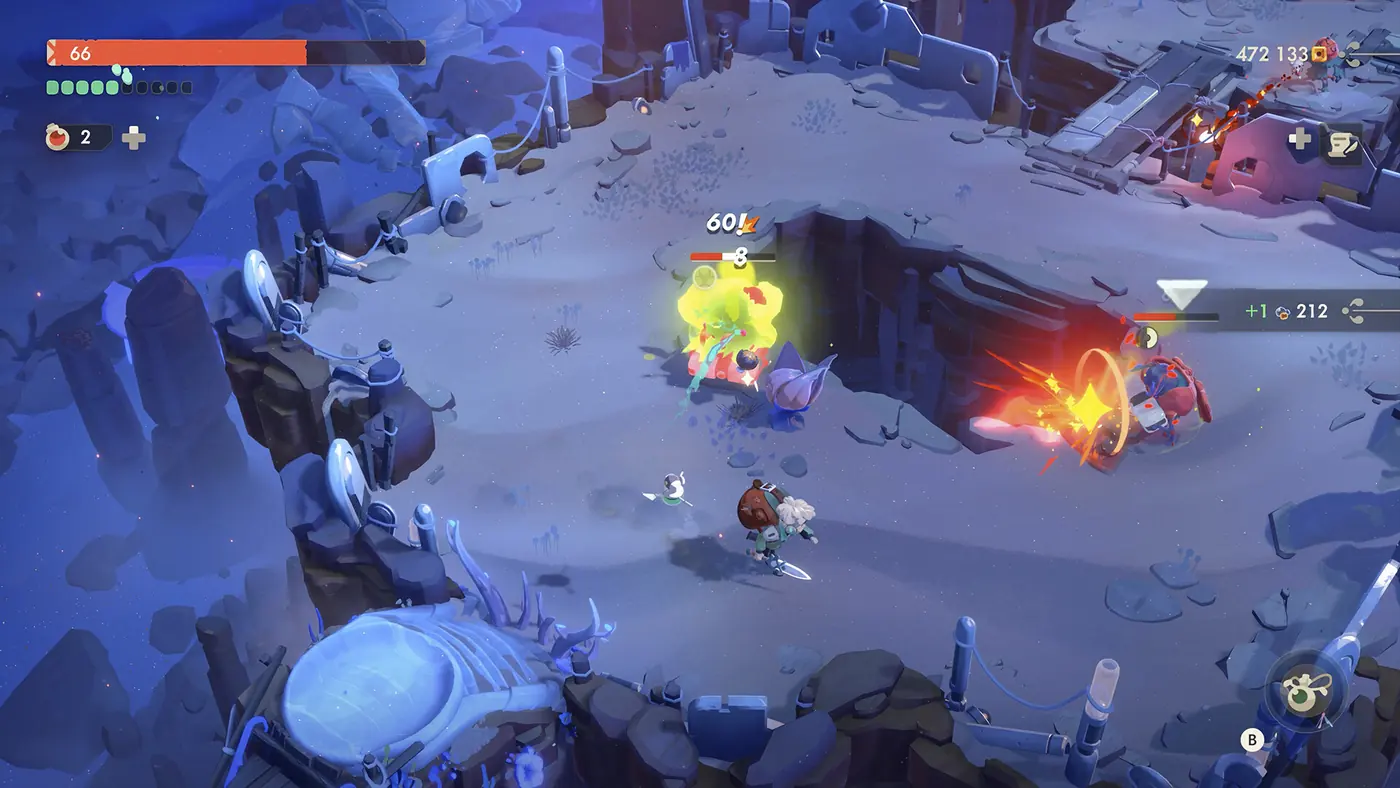
Moonlighter 2 gameplay screenshot. This image is used for identification and editorial context.
Start with the symptom you are trying to solve
Before changing the graphics API, decide whether your problem is a crash, a long loading screen, a visible hitch, unstable frame pacing, or a low average frame rate. Those symptoms are related but not interchangeable. A game that crashes during a transition needs a different observation from a game that runs continuously but stutters when entering a new room. Write down where the problem occurs and whether it began after the version 1.0 release or after a later driver change.
Use a save and route that you can repeat without risking a full backpack. If the issue happens while returning to Tresna, test that transition from a low-value run. If it happens in combat, choose a familiar room and avoid taking rare loot. This makes the comparison both safer and easier to interpret. Do not use a single crash-free session as proof that the problem is permanently gone; repeat the same action several times before calling the result stable.
Record a baseline before switching APIs
Write down the current DirectX selection, display resolution, window mode, frame cap, graphics preset, upscaling option, GPU driver version, and whether the game is installed on an SSD. These are practical context fields, not claims that every one causes the same issue. Keep the graphics options unchanged while you compare APIs. If you update a driver, change a frame cap, and switch APIs together, you will not know which change affected the outcome.
Choose one repeatable scenario: load the same area, follow the same path, trigger the same transition, or perform the same number of combat actions. If the problem is intermittent, use a short series of repeated runs and count how often it appears. Record the time to reach the area only if loading is the symptom you are measuring. A simple log with date, API, scenario, and result is more useful than a broad note that the game “felt smoother.”
Change the API and restart cleanly
Select the alternate DirectX option in the game’s settings and follow any restart prompt. Close the game fully before relaunching if the setting requires a restart. Then repeat the baseline scenario with the same save and unchanged graphics options. Watch for the original symptom first. A higher frame-rate counter does not settle a crash test, and a crash-free route does not prove that a visual hitch improved.
Run the scenario more than once because the first pass after switching may include shader or asset work. If the game requests a shader cache rebuild, let it finish before comparing later runs. Keep the first API result even if it is worse; you need both sides of the comparison to choose responsibly. If the alternate API fails to launch, switch back using the supported settings or launcher flow rather than editing unrelated game files.
Separate stutter from a loading freeze
A brief hitch during movement can be frame pacing, shader compilation, storage activity, or a world transition. A loading screen that never completes is a different failure. Note whether input still responds, whether the transition eventually finishes, and whether the same spot reproduces the issue. Hotfix 1 specifically addressed a tutorial loading-screen freeze while returning to Tresna; do not assume a freeze in every chapter is the identical bug.
For a stutter test, traverse the same small route twice after the initial load. For a freeze test, use the exact return transition and record whether it hangs on both APIs. Do not interrupt a normal loading screen too quickly, but do not leave a repeatable hard freeze unreported. If only one API reproduces it, note that result with the machine and driver details. If both do, the cause may lie elsewhere in the configuration or build.
Interpret results without overclaiming
If DirectX 11 reduces the same crash or stutter on repeated runs, use it as the current workaround on your PC and keep a note of the build. If DirectX 12 behaves better, the same advice applies in reverse. If the results are mixed, choose the option that avoids the more disruptive failure and test again after the next patch. The hotfix asks players with instability or poor performance to try both; it does not publish a winner or a benchmark for every GPU.
Do not compare two different areas or saves and attribute the outcome solely to the API. Enemy count, effects, camera, and loading state can all change the workload. Do not publish an exact frame-rate gain unless you measured it with the same settings and a repeatable scene. Community experiences help identify patterns, but one player’s stable configuration cannot guarantee another system will behave the same way.
What to include in a useful PC report
If the issue persists, include your CPU and GPU models, driver version, Windows version, memory, storage type, selected API, resolution, graphics preset, and a short reproduction path. Say whether the problem is a crash, a permanent freeze, a temporary hitch, or a performance drop. Mention whether it happens on both DirectX options and whether it began before or after Hotfix 1. A clear report is more actionable than a screenshot of a settings menu alone.
Preserve crash details and do not upload private account data or unrelated files. If the game shows an official report form or prompt, use that channel and describe the steps in plain language. Avoid changing save data while investigating a rendering problem. If you need to return to your previous configuration, restore the recorded API and graphics settings one at a time.
Keep a stable play setup after testing
Once one API completes your normal route reliably, keep it selected for the next session and avoid retuning every setting. Stability matters more than chasing a small unverified counter increase when you are carrying valuable loot. If a later patch changes rendering behavior, repeat the same scenario instead of assuming today’s result will remain final. Keep the test note with its date and build so older advice does not look like a universal PC requirement.
The DirectX selector is a useful diagnostic because it offers two supported paths through the same game. Its value comes from a controlled trial: baseline, switch, repeat, compare, and preserve the result. That method helps distinguish an API-specific issue from a broader loading, storage, driver, or save problem without inventing a one-size-fits-all fix.
Related Moonlighter 2 guides
Moonlighter 2 Beginner Guide: First Runs, Sales and Upgrades
A fact-first Moonlighter 2 beginner guide covering dungeon runs, relics, shop prices, and village reinvestment.
Moonlighter 2 Dungeon Guide: Routes, Combat and Run Decisions
A Moonlighter 2 dungeon guide grounded in the Steam description: route planning, relic collection, backpack space, and escalating rewards.
Moonlighter 2 Shop Guide: Stock, Selling and Reinvestment
A source-tracked Moonlighter 2 shop guide covering player-set prices, customers, decorations, perks, and village investment.